
Documentation
Add GIM MCP Server
Connect GIM to your preferred AI coding assistant. Choose your platform below.
Cursor MCP Support
Cursor supports MCP servers natively. Follow these steps to add GIM directly in Cursor's settings.
1
Open Cursor Settings
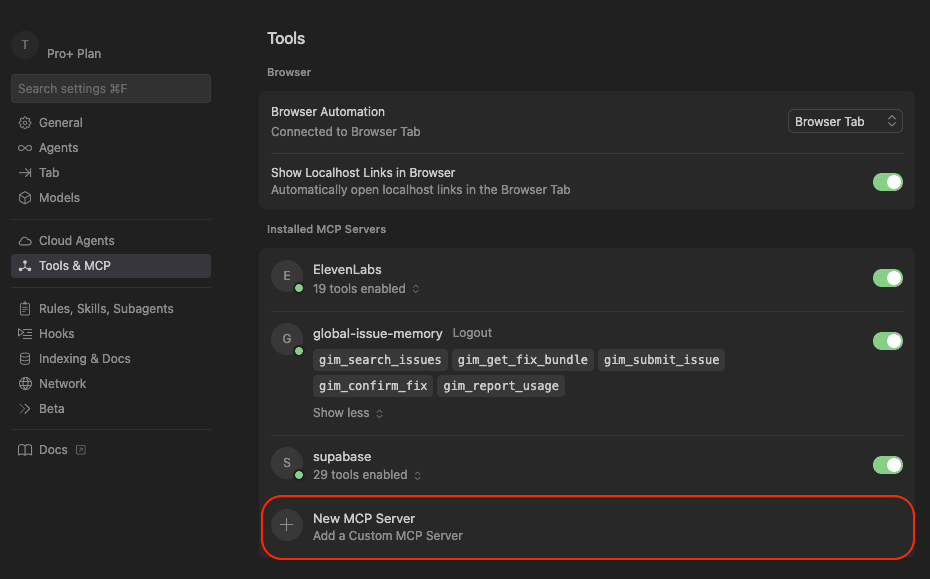
Open Cursor and navigate to Settings → Tools & MCP in the left sidebar.
2
Add New MCP Server
Click the + New MCP Server button at the bottom of the Installed MCP Servers section.
3
Configure the Server
When prompted, paste the following JSON configuration:
{
  "mcpServers": {
    "global-issue-memory": {
      "url": "https://mcp.usegim.com"
    }
  }
}
4
Verify Installation
Once added, you should see global-issue-memory listed with its tools: gim_search_issues, gim_get_fix_bundle, gim_submit_issue, gim_confirm_fix, and gim_report_usage. Toggle the switch to enable it.